How to Make a GIF Smaller for Faster Sharing
Reduce GIF size by controlling dimensions, frame rate, duration and color while protecting the important action.
Animated GIFs are convenient because they play automatically in many apps and web pages, but they can become surprisingly large. A smaller GIF loads faster and is easier to send. The most effective reductions usually come from changing what the animation contains, not only lowering a generic quality setting.
Trim the duration
Remove frames before and after the important action. A short loop that communicates one idea is easier to understand and requires less data than a long recording with pauses.
Reduce the dimensions
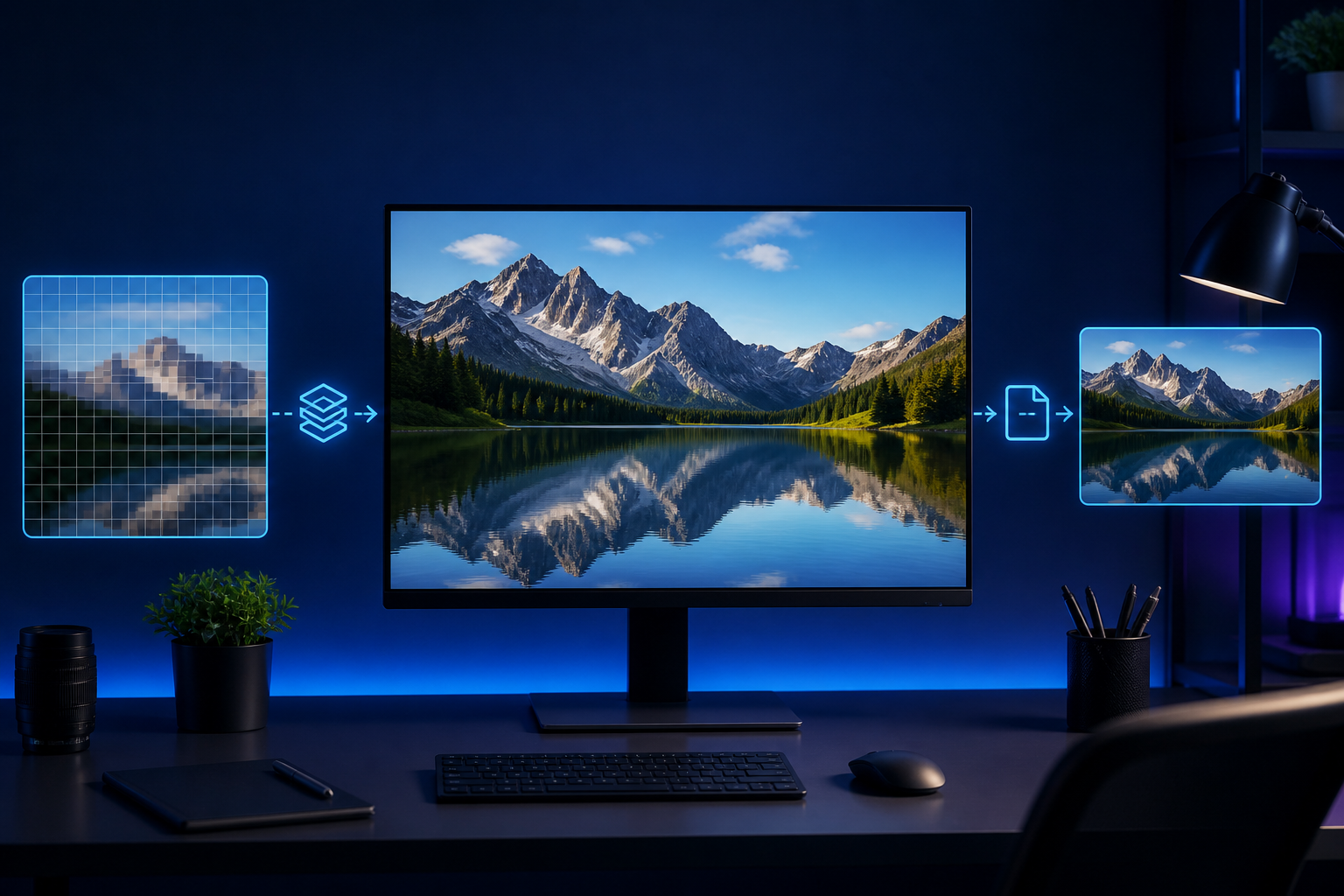
Match the GIF dimensions to its actual display size. A chat reaction or instructional thumbnail rarely needs desktop-screen resolution. Reducing width and height can create a large saving because every frame contains fewer pixels.
Use fewer frames
A high frame rate is often unnecessary for simple movement. Lowering the number of frames per second can reduce size while keeping the animation understandable. Watch for motion that becomes jerky and choose the lowest acceptable rate.
Limit colors carefully
GIF uses a restricted color palette. Images with gradients, photographs and subtle shadows need more colors than flat illustrations. Reducing the palette works best for graphics with simple shapes and consistent backgrounds.
Avoid unnecessary visual noise
Film grain, moving backgrounds and rapidly changing details are expensive to encode. Crop the animation around the relevant area and simplify the source when possible.
Test the final file
Open the compressed GIF in the app or page where it will be used. Confirm that the loop timing, text readability and key action remain clear. Keep the larger source so you can create another version for a different platform.